Launching game content
In this section, we will show you how to properly launch our game content in your playground.
Running the game with a local server:
If you have an assembly for a local server, then the "Windows_Server" folder will be located in the folder after unpacking the archive.
How to run on a local server:
1. Start the local server.
2. Launch the admin panel.
3. Connect to the local server from the admin panel.
4. Run the build on the virtual reality hedsets.
5. Connect to the local server from your headsets and calibrate it according to the game space plan.
Step-by-step steps:
After unpacking the file to the root folder of your computer, you will have a folder with the game, which will contain files for launching the game, as well as installation files for headsets and tablets.
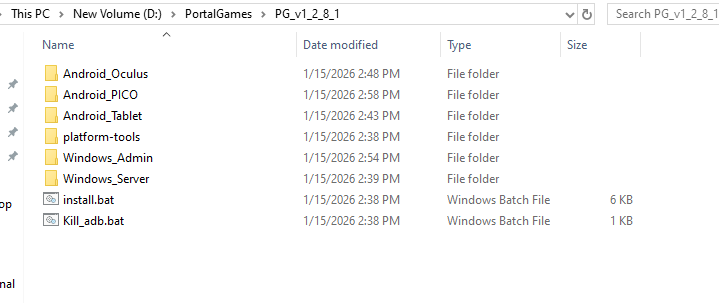
1. Open the Windows_Server folder, which contains the Run file with the <extension.bat> .
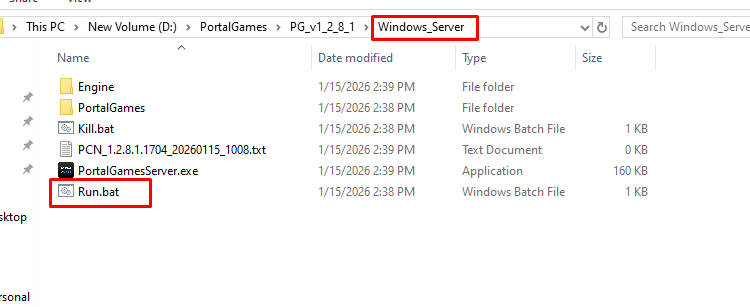
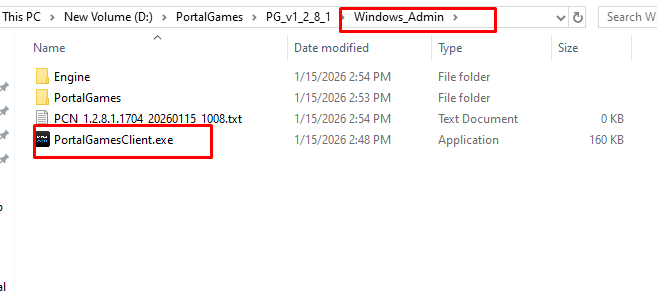
2. After running the Run.bat file you will see a console window that you can hide. This means that the server is running. Then go back and open the Windows_Admin folder where the PortalGamesClient.exe file is located and run it.
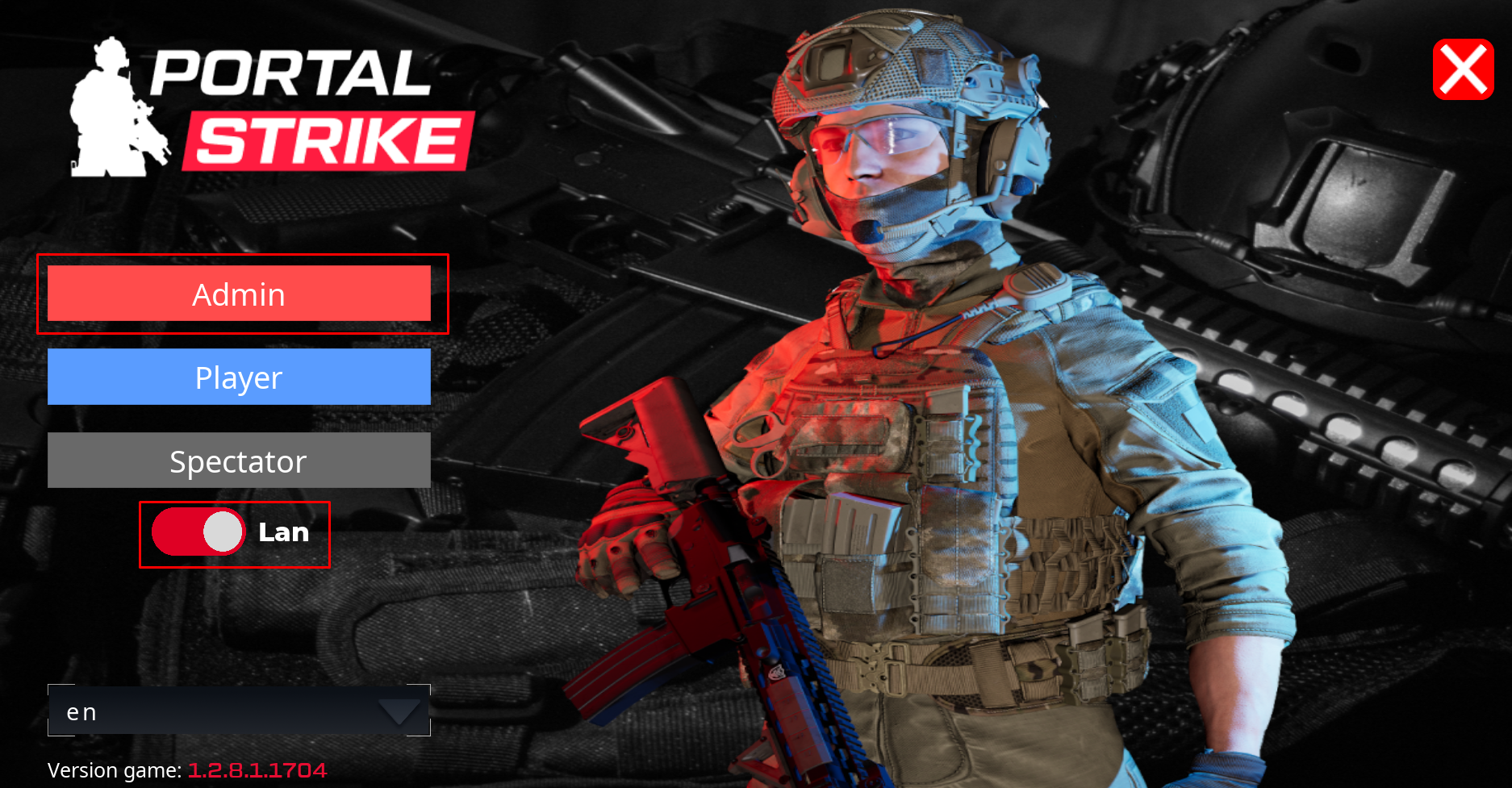
3. After launching the admin panel with the game on your computer or tablet, make sure that the LAN switch is on. Then click the Admin button to launch the game.
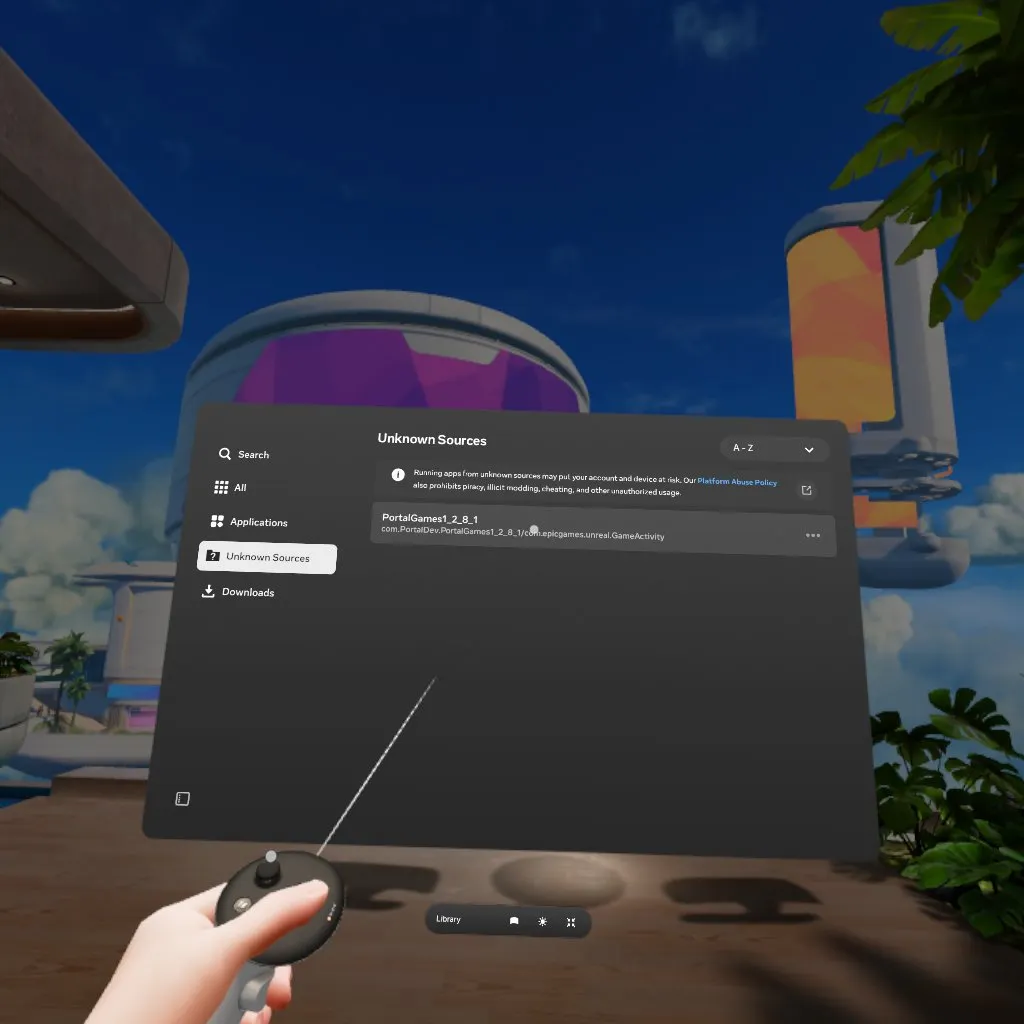
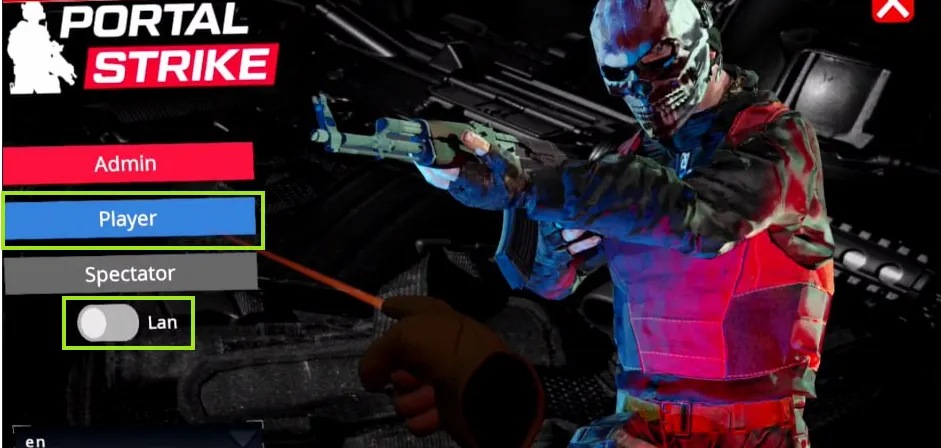
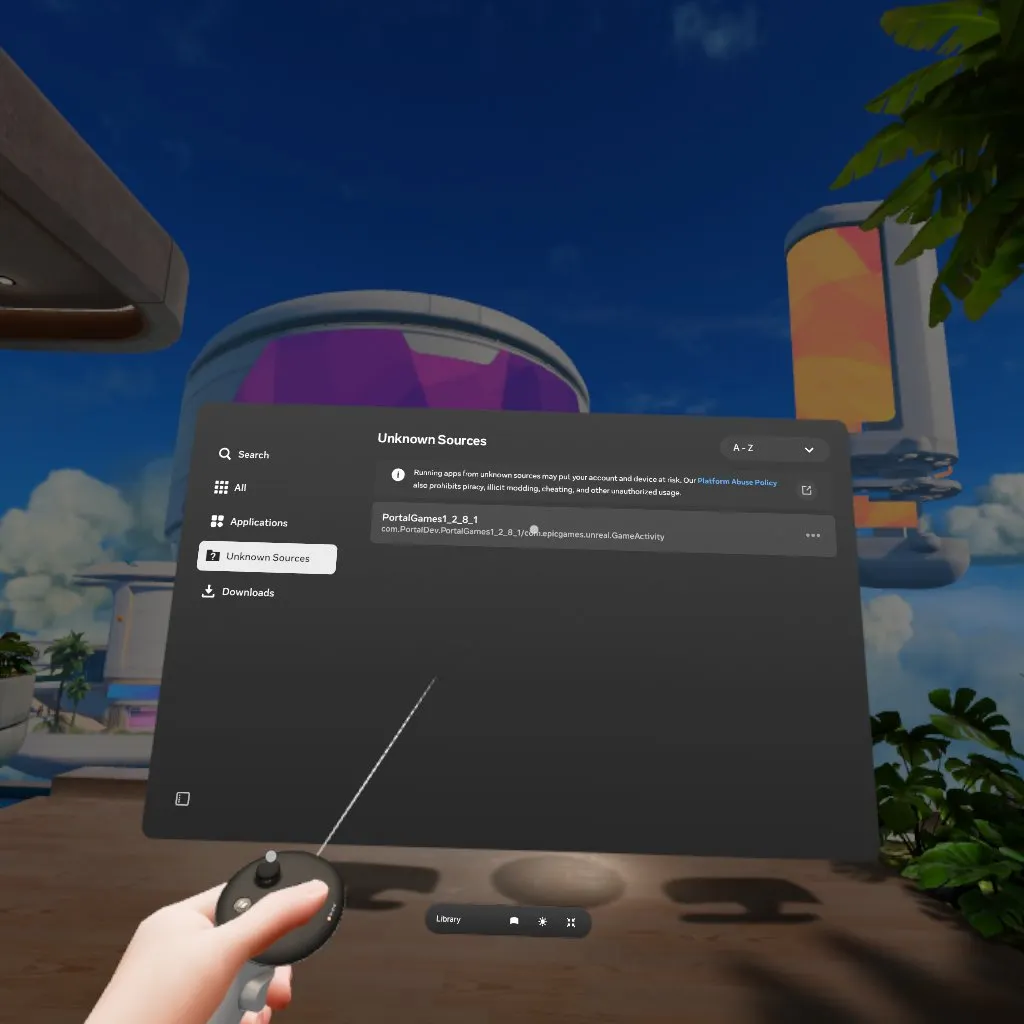
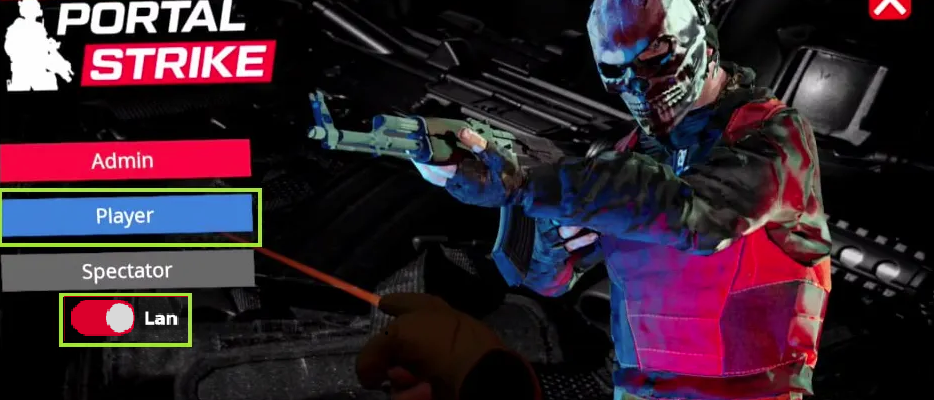
4. Launch the game on the headset (the Portal_Games_xxx. file is in unknown sources). After starting the game, do not forget to switch the LAN to the enabled state and click "Player". After connecting via the helmet, you will need to perform calibration.
ЗапускRunning игрыthe сgame удалённогоwith сервераa remote server:
ЗапуститеLaunchпанельtheадминистратора.admin panel.ПодключитесьConnectкtoудалённомуtheсерверуremoteизserverпанелиfromадминистратора.the admin panel.ЗапуститеRunсборкуtheнаbuildшлемеonвиртуальнойtheреальности.virtual reality headsets.ПодключитесьConnectкtoудалённомуaсерверуremoteсserverпомощьюusingшлемаyourиhelmetоткалибруйтеandегоcalibrateвitсоответствииaccordingсtoпланомtheигровогоgameпространства.space plan.
ПодключениеStep-by-step к удалённому серверу:steps:
Откройте1. папкуOpen "Windows_Admin" и запустите файлWindows_Admin PortalGamesClientfolder where the PortalGamesClient.exe file is located and run it. .
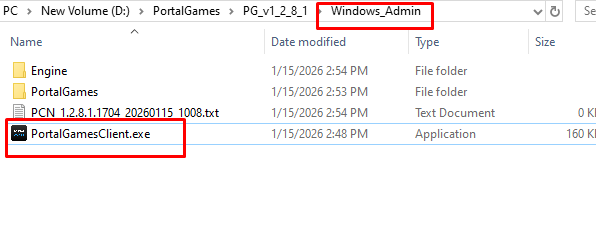
Теперь2. выключитеAfter ползунокlaunching the admin panel with the game on your computer or tablet, make sure that the LAN switch is off. Then click the LANAdmin иbutton нажмитеto кнопкуlaunch «Администратор»the , после чего вы подключитесь к удаленному серверу.game.
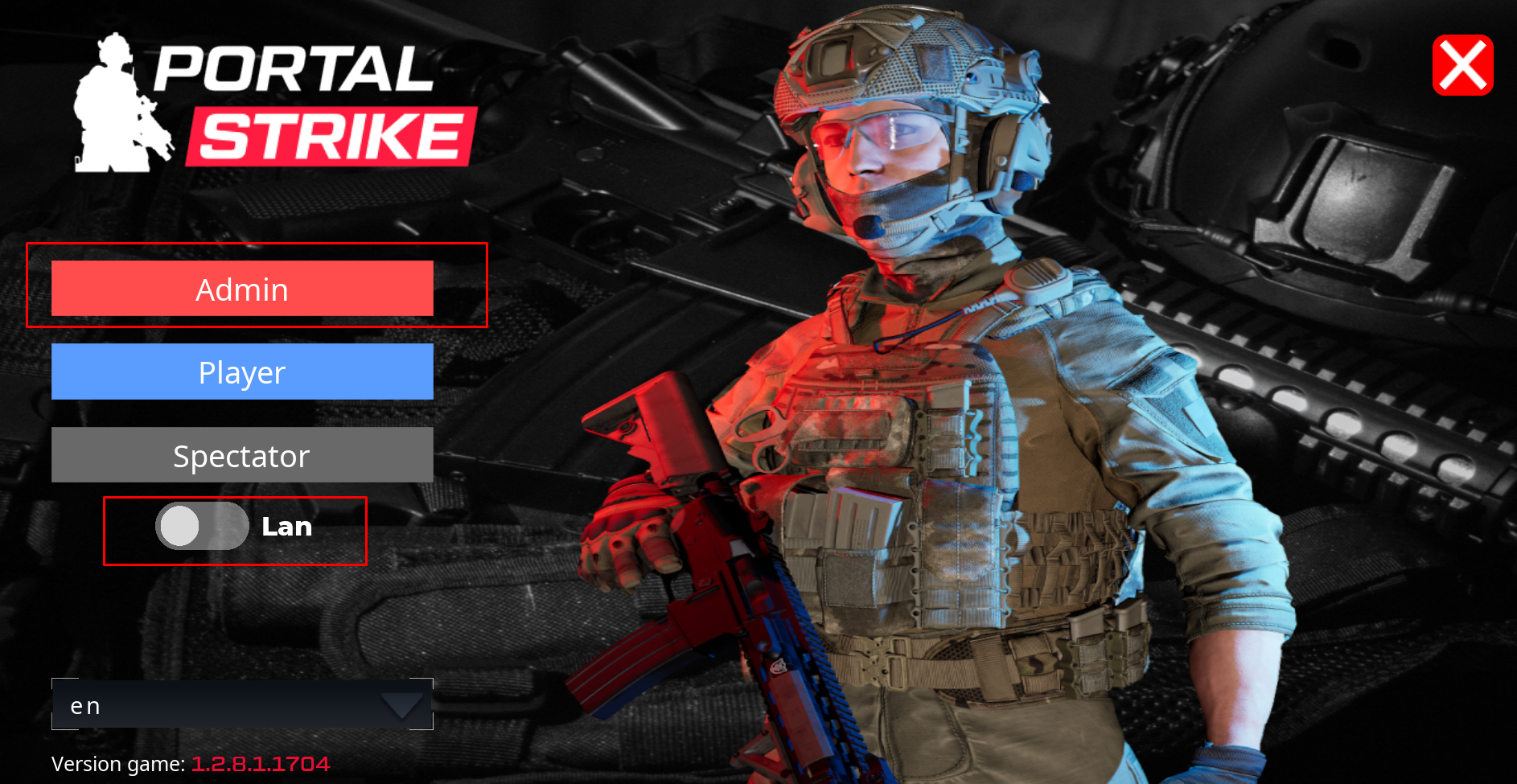
3. Launch the game on the headset (the Portal_Games_xxx. file is in unknown sources). After starting the game, do not forget to switch the LAN to the disabled state and click "Player". After connecting via the helmet, you will need to perform calibration.
Зайдите в меню запуска через шлем. Откройте «Неизвестные источники» в настройках шлема, там вы увидите игру «PortalGames_x.xx», запустите её, отключите ползунок «LAN» и выберите «Игрок» вместо «Администратор». После подключения через шлем вам потребуется выполнить калибровку.